1 · Getting started
What you'll do
Open TofuFactory for the first time and tell it about your project — the folder of code you want the AIs to work on.
Before you start
- You have TofuFactory installed (someone gave you the app, or you downloaded a release). You just need the app itself — nothing else to set up.
- You have a project in mind: a folder of code, tracked with Git. If you're just trying things out, point it at a small practice project, not something important.
Open the app
Launch TofuFactory the way you'd open any app — double-click it. A window appears with a brief splash, then the main screen loads.
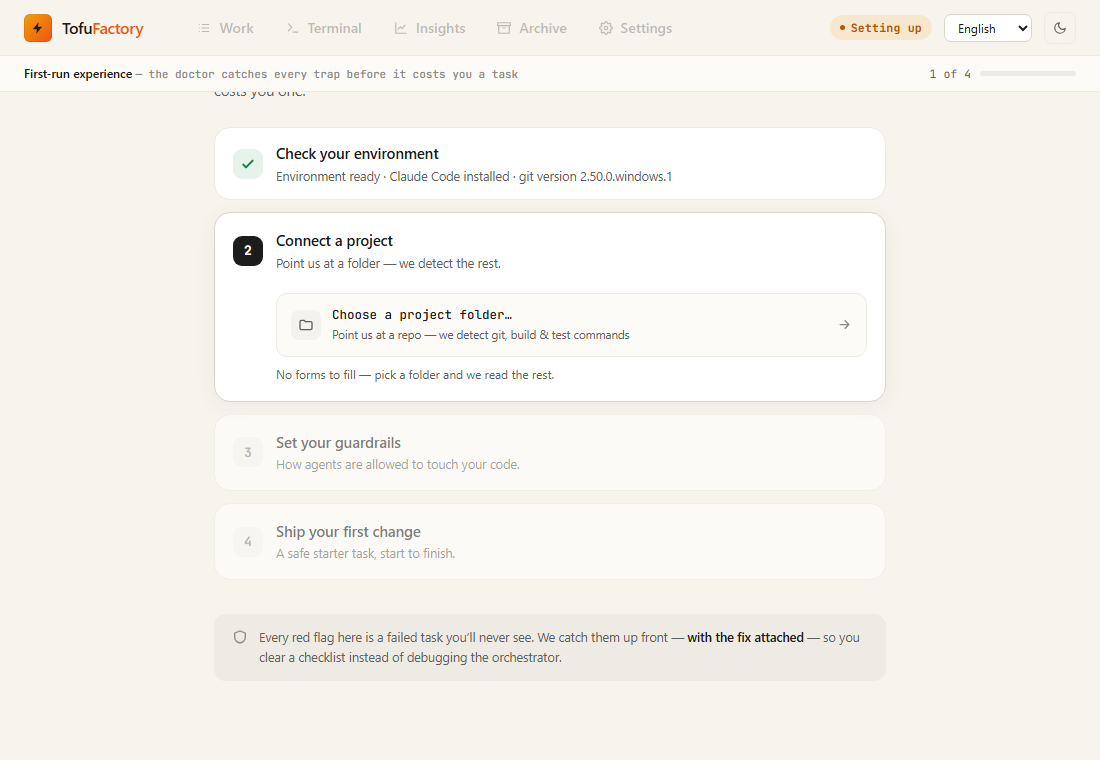
That's the whole install story for you as a user: there's nothing to configure on the command line. The app runs everything it needs behind the window.
Add your project
The first time it opens, TofuFactory walks you through setup. The key step is adding a project — pointing it at the folder of code you want worked on.
- Follow the welcome screens until you reach project setup.
- Choose the folder of your project (the Git repository you want AIs to work on).
- Give it a name you'll recognize — you'll pick projects by this name later.
Why a project? TofuFactory keeps work organized by project, and every job runs inside that project's folder. You can add more projects later; you just need one to begin.
You should now see
- The TofuFactory main screen, open and ready.
- Your project listed/selected, so the app knows where work will happen.
If something's not right
| Problem | What to do |
|---|---|
| The window stays on the splash and never loads | Close it and reopen. If it keeps happening, the app couldn't start its engine — reinstall the latest version. |
| Setup won't accept my folder | It needs to be a Git repository. Make sure the folder is one (it has a hidden .git inside). |
| I skipped setup | You can add a project later from the app's settings/onboarding screen — it's the same step. |
Next
→ 2 · Set up your AI workers — choose which AIs will do the work.