10 · Control from Discord
What you'll do
Connect TofuFactory to a Discord bot so you can run the factory from your phone — queue a job, check what's happening, deploy, or pause everything — just by typing a command in a chat. No need to be at the computer or open the app.
This is the two-way Discord connection. Page 6 set up Discord to send you alerts; this page lets you send commands back. You can use either on its own, or both together.
Set it up
Everything is done from Settings → Discord. It connects live — you never restart the app.
- Make a bot. Click Open Developer Portal on the Discord card. On Discord's site, create (or open) an application, go to its Bot page, and use Reset Token to reveal a bot token. Copy it.
- Paste the token. Back in TofuFactory, paste it into Bot token and, if you want digests and alerts to land in a specific channel, put that channel's ID in Digest channel.
- Install. Click Install. The status badge moves from Not configured to Connecting… and then Connected once the bot is live.
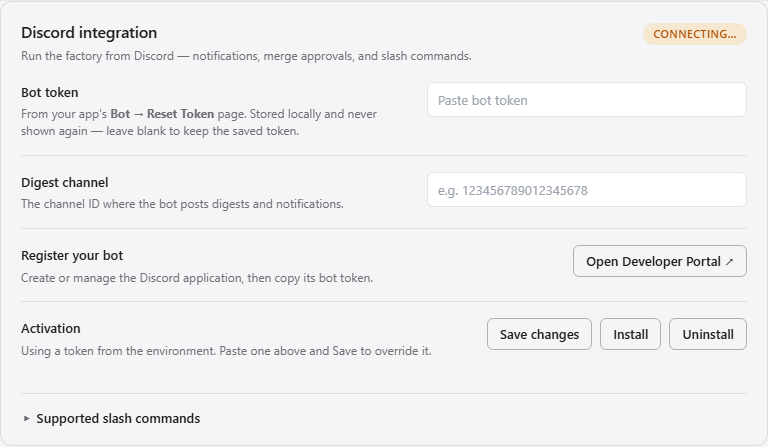
The token is stored locally and never shown again — leave the field blank later to keep the saved one.
The commands you'll actually use
Once connected, type these in any channel the bot can see. The full list lives under Supported slash commands on the same settings card; here are the ones you'll reach for:
| You want to… | Type |
|---|---|
| See what's running | /tasks |
| Start a job | /create <what you want done> |
| Bump or lower a job | /priority <id> <critical/high/medium/low> |
| Re-queue a stuck job | /restart <id> |
| Check on everything | /status |
| Pause all work | /pause |
| Resume | /green |
| Ship a project | /deploy <project> |
| Undo a deploy | /rollback <project> |
There are a few more for builds, logs, and steering a running agent — open Supported slash commands in Settings to see them all, grouped into Tasks, Projects, and System.
A typical away-from-desk flow
/status— is anything stuck or paused?/create Fix the broken signup redirect— hand off a job./tasks— watch it move along./deploy myapp— ship it once it's done.- If it misbehaves:
/rollback myapp, then/pausewhile you look into it.
A note on safety
The bot only acts on the servers you invite it to, and only as the person on the other end of the chat. Keep it in a private server, or one only you and people you trust can post in — anyone who can type a command can drive your factory. (Access can also be narrowed to specific servers or people; ask whoever set up your install if you need that.)
You should now see
- A Connected badge on the Discord settings card.
- A reply in Discord when you type
/status. - The ability to start, check, and steer work from your phone.
If something's not right
| Problem | What to do |
|---|---|
| Badge stuck on Connecting… | The token was probably mistyped — reset it on the Developer Portal (Bot → Reset Token) and paste the new one. |
| Badge says Invalid token | Discord rejected it. Reset the token and save the fresh value. |
| Badge says Unavailable | This build doesn't include Discord support — update to one that does. |
| Bot is silent to commands | Make sure it's actually invited to the server and can see the channel you're typing in. |
| Digests go nowhere | Double-check the Digest channel ID is the right channel. |
Next
→ 11 · Code history — browse commits and read visual diffs right inside the app.