11 · Code history
What you'll do
Browse and search your project's past changes — and read exactly what changed in any commit — without opening a terminal or a separate Git tool.
Open the history screen
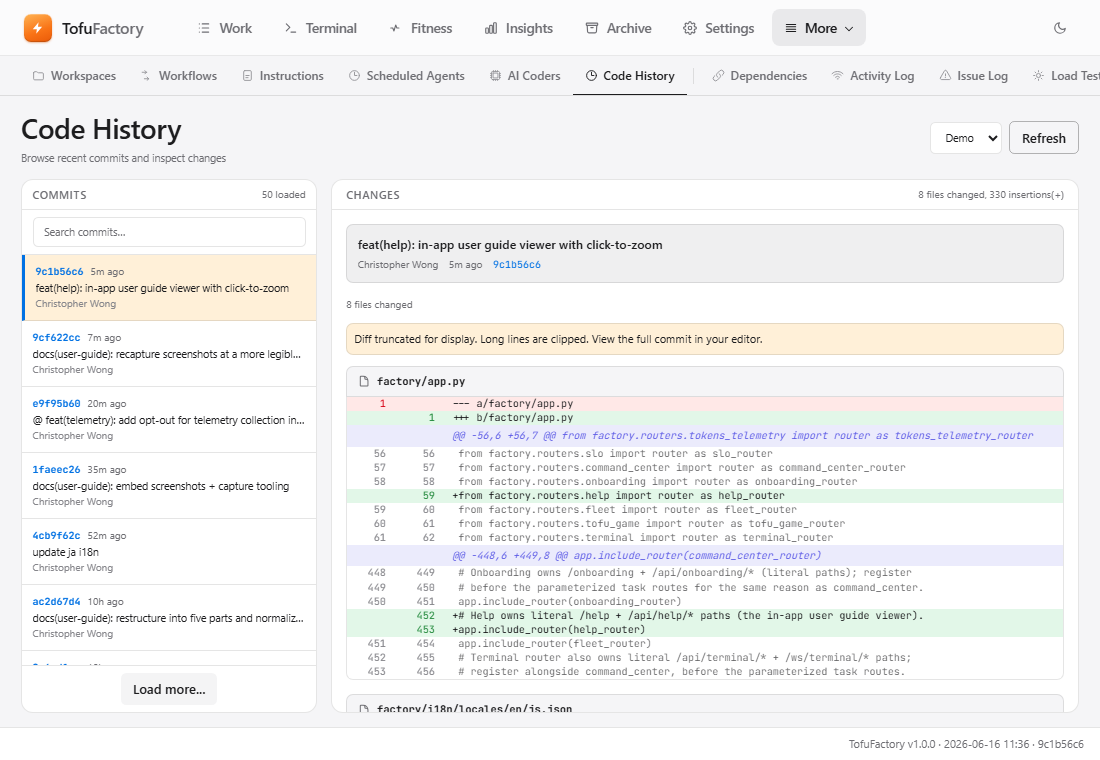
Go to History from the navigation menu. You'll see a list of changes, newest first, with who made each one, when, and the message describing it.
Find a change
- Pick the project from the dropdown at the top left if you have more than one.
- Search by typing in the box — it filters by author or by words in the message as you type. (It searches the messages, not the code inside files.)
- Go further back by clicking Older commits at the bottom of the list.
Read what changed
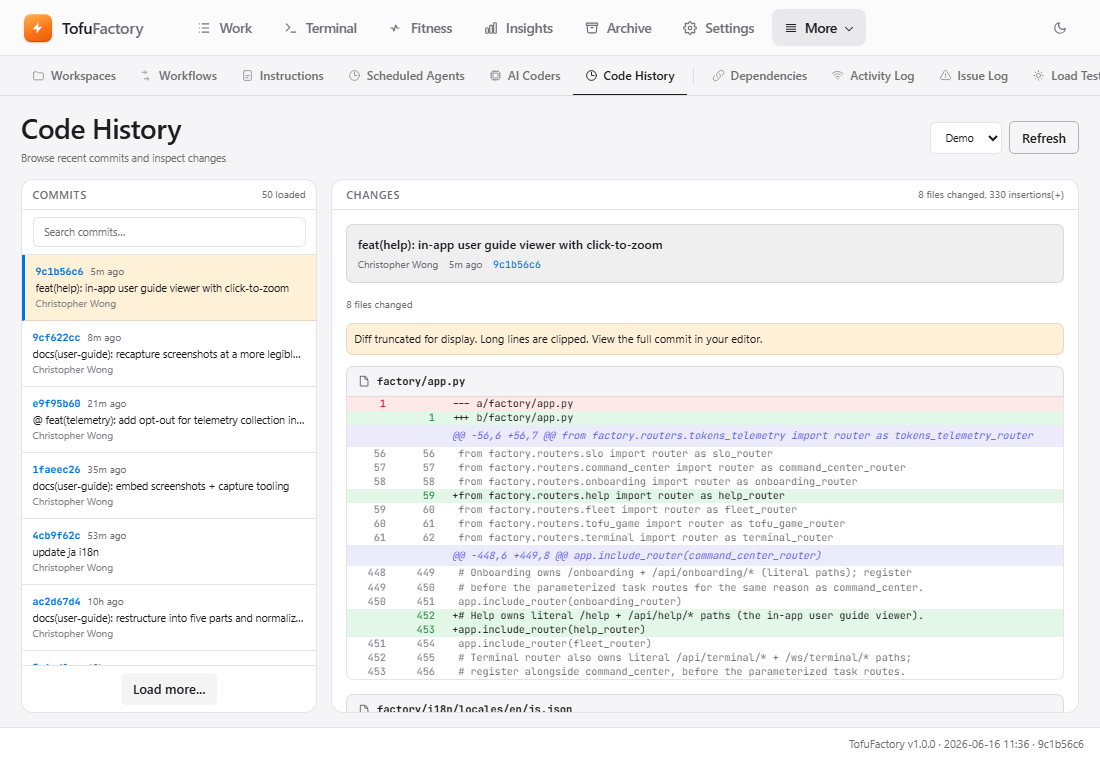
Click any change to open its details on the right.
You'll see:
- A one-line summary — how many files changed, and how many lines were added and removed.
- Each changed file in its own box you can expand, showing the edit line by line: green lines were added, red lines were removed, and the plain lines around them are there for context.
Very large changes are trimmed. A huge change — a sweeping refactor, a generated file — is clipped so it doesn't freeze your browser: long lines are cut off and the view stops after a few thousand lines, with a note telling you so. To read one of those in full, open it in a Git tool on your computer.
Why the history stays clean
You'll notice every change in here builds and passes — there are no broken commits to wade through. That's by design: while an AI works, it edits a copy of your code off to the side, and its work is only committed to your real project after the build and tests pass. A change that fails its check is never committed, so it never clutters your history. (This is the same safety check you saw in page 4, seen from the history side.)
You should now see
- A list of your project's past changes.
- Expandable file diffs with red and green lines.
- The list narrowing as you type in the search box.
If something's not right
| Problem | What to do |
|---|---|
| The history screen is empty | Check you picked the right project, and that its folder is a Git repository with at least one commit. |
| Search finds nothing | Check the spelling — search looks at messages and authors, not the text inside files. |
| A diff says it was trimmed | The change was too big to show in full. Open it in a Git tool on your computer to see all of it. |
Next
→ 12 · Customizing prompts — shape the instructions your AIs work from.