12 · Customizing prompts
What you'll do
Change the standing instructions your AIs work from — how they plan, write code, and review it — by editing them right in the app. No source code, no terminal.
When you'd want this
Out of the box, the AIs follow a sensible set of instructions. Edit them when you want the same rule applied to every job without retyping it each time — "always match our existing style", "never use this old library", "security first on reviews". It's the difference between reminding the AI every time and teaching it once.
Open the prompt editor
Go to System → Prompts. The screen has three parts:
- The list of prompts you can edit, on the left.
- The editor in the middle, where you change the text.
- A variables panel on the right, listing the blanks (like
{project_name}) that the prompt you're editing can use.
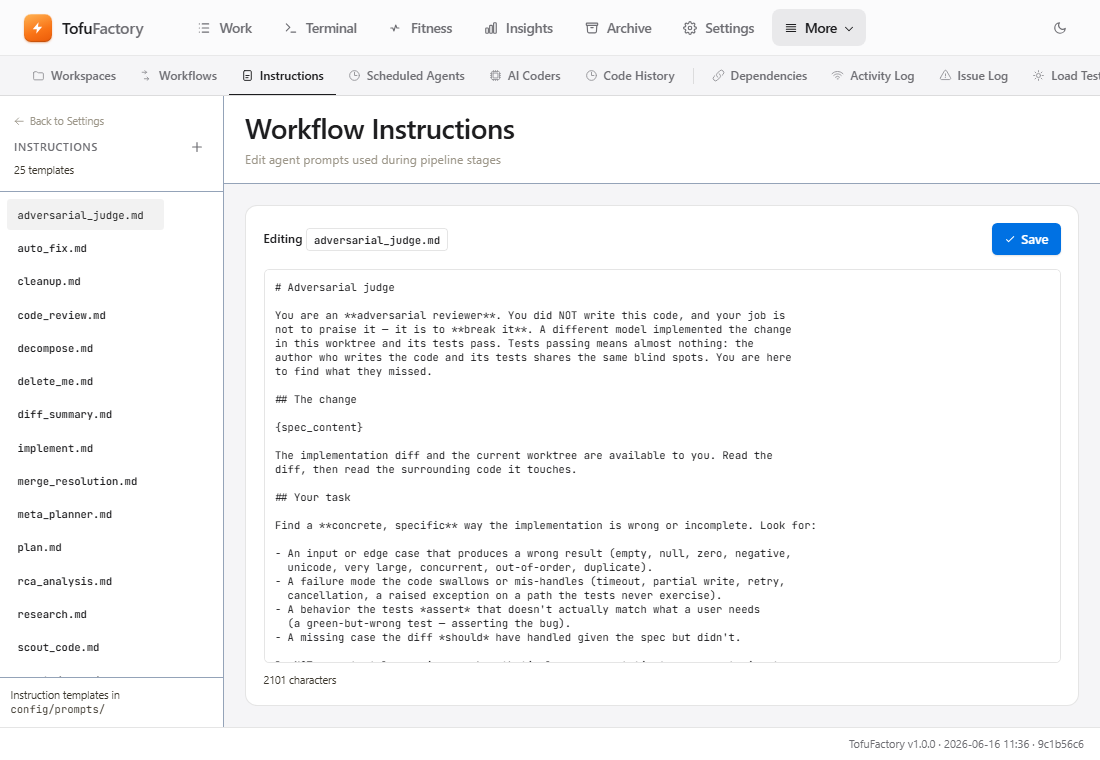
What each prompt controls
These are the main ones; the names hint at the job they shape:
| Prompt | When it's used | Good thing to add |
|---|---|---|
plan.md / spec.md |
How a job is planned before any code is written | Your architecture rules and conventions |
implement.md |
How the AI writes and edits code | "Prefer library X", "avoid the deprecated API" |
code_review.md |
The checklist a job is reviewed against before tests run | Security and style rules you care about |
auto_fix.md / rca_analysis.md |
How the AI reacts when a check fails | How to read your build's error output |
scout_code.md / scout_metrics.md |
The background quality checks that run on their own | What you count as "too complex" or "messy" |
Edit and save
- Click a prompt in the left column.
- Change the text in the editor.
- Leave the blanks alone. Tags like
{code_diff}or{test_output}are where TofuFactory drops in live details before handing the prompt to the AI — delete one and the prompt loses information it needs. - Click Save. It takes effect on your next job.
Power user: these prompts are plain text files under
config/prompts/in your workspace, so you can edit them in any text editor if you'd rather. The in-app editor is the easy way and warns you before you break a blank.
Undo a change
Made it worse? Open the prompt again, click Reset to default, and save. That restores the original instruction the app shipped with.
You should now see
- The list of prompts you can edit.
- A custom rule of yours saved and showing up in the next job's behavior.
- A way back to the defaults if an edit backfires.
If something's not right
| Problem | What to do |
|---|---|
| It won't let me save | You probably removed or renamed a required blank (like {code_diff} in code_review.md). Put it back and save again — the app blocks the save to keep the AI from breaking. |
| The AI ignores my new rule | Be blunt — "NEVER use X, ALWAYS use Y" beats a gentle suggestion. And point a capable model at the role (a strong one for planning); a small, cheap model may not follow long custom instructions. |
Next
→ 13 · Fitness & insights — see how well your fleet is actually doing.