4 · Your first task
What you'll do
Give the AI a real job, watch it work, and see the result merged into your project — all from one screen. This is the whole point of TofuFactory, start to finish.
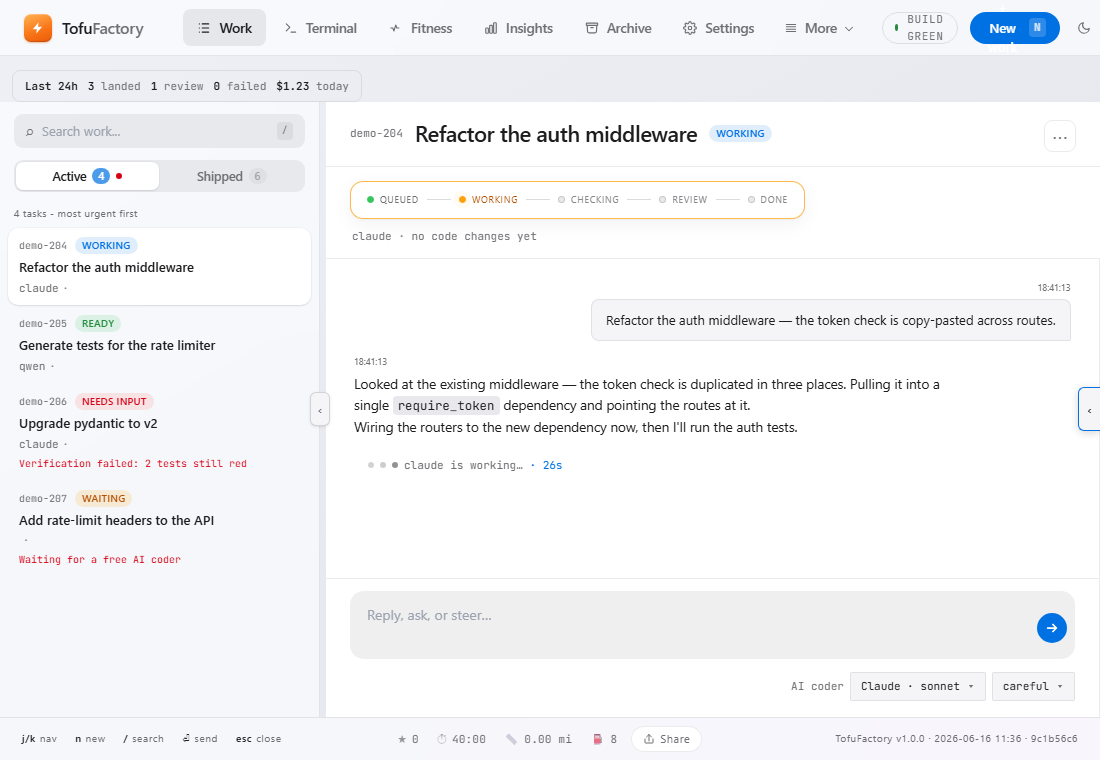
Open the work screen
Go to Work — the main screen where you create jobs and watch them run. (It's where the app opens by default.)
Describe a job
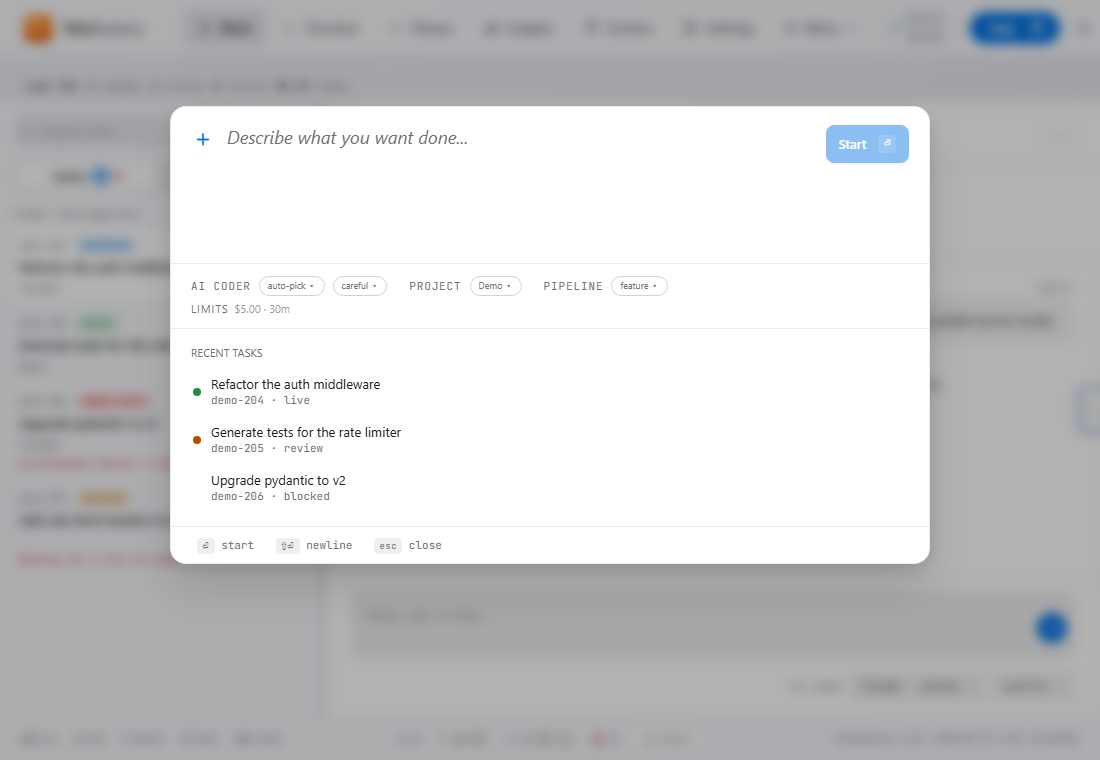
Start a new task and write what you want in plain English. For your first one, pick something small and easy to check — where "did it work?" has an obvious answer:
"Add a comment at the top of the main file explaining what this project does."
or
"Fix the failing test."
Choose the project it should run on. You can leave the other options on their defaults — the factory will pick a suitable AI for the job.
Watch it happen
Once you start it, the job joins the queue and, when an AI is free, gets picked up. The screen updates by itself — you don't refresh anything:
- The status moves along as the job is picked up, worked on, and checked.
- A changes panel fills in as the AI edits files.
- A chat panel shows the AI explaining what it's doing.
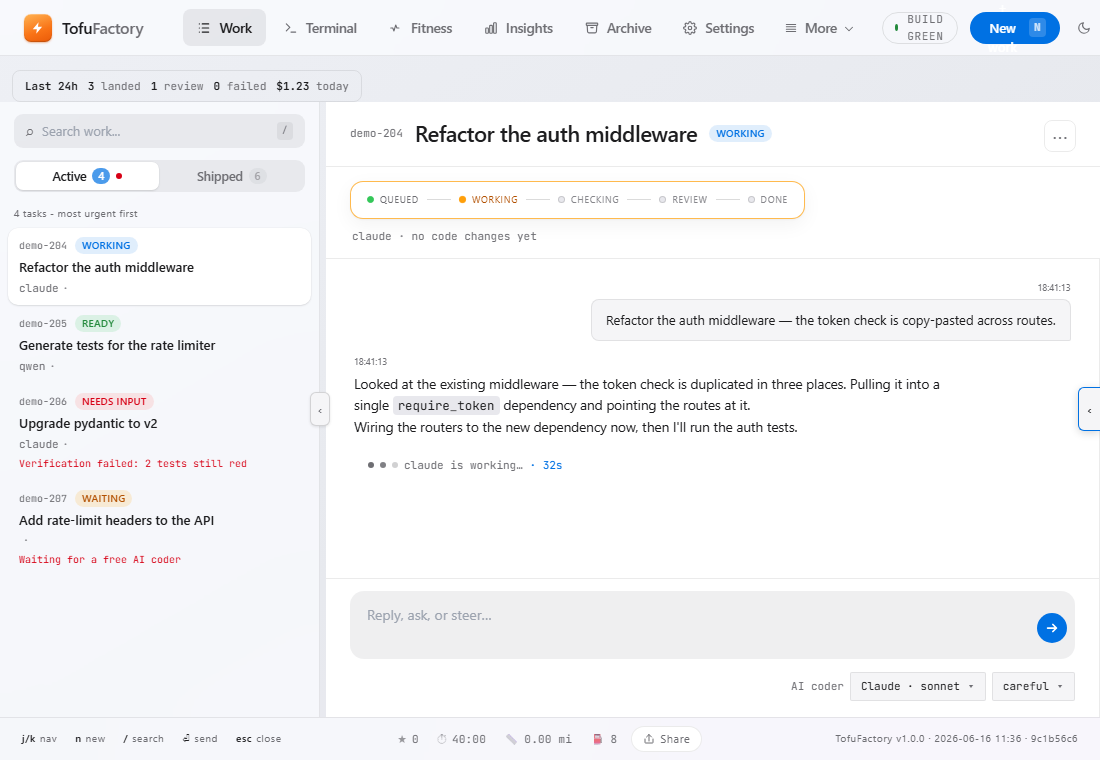
You don't have to do anything here. Just watch the loop work.
The safety check
When the AI thinks it's done, TofuFactory checks the work — it builds the project and runs its tests — before anything is kept. You'll see the result on the job.
- Passed → the work can be merged into your project.
- Failed → the job comes back to you with the details, and your project is left untouched.
This check is what makes it safe to let an AI work on its own. "I'm done" isn't enough; the tests have to agree.
Keep the result
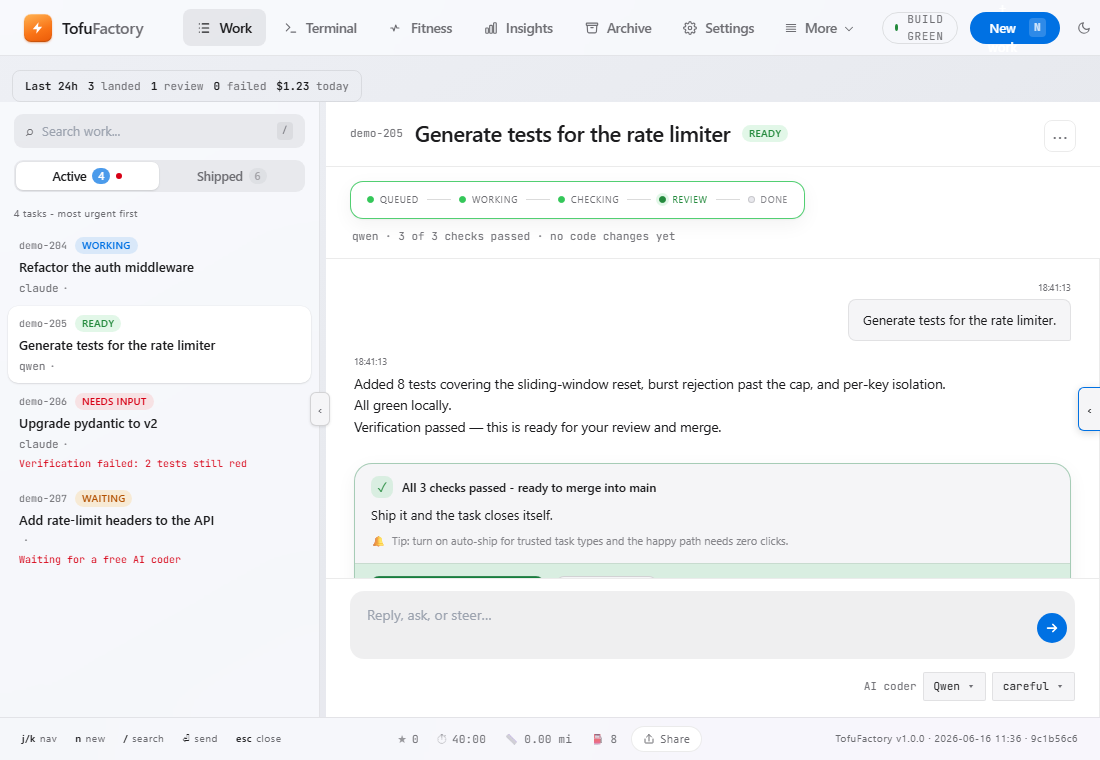
A job that passes its check gets merged into your project. Depending on your settings this happens automatically, or you click to approve it. Either way, the change is now part of your project — and it never touched anything until it passed.
You should now see
- One job that went from new to finished, with a passing check.
- A real change in your project that was merged only after it passed.
- The basic loop you'll repeat for everything else.
If something's not right
| Problem | What to do |
|---|---|
| The job just sits in the queue | No AI is free or set up — revisit page 2. Also check work isn't paused (see page 17). |
| The job came back blocked | Its check failed. Open the job to read why — that's the safety net doing its job, not a fault. |
| Everything paused | You may have hit your spending cap (page 3). |
| Nothing's updating on screen | Reload the screen; it reconnects and picks up where things are. |
Next
→ 5 · Watch and steer a task — what to do when the AI starts heading the wrong way.