8 · Chain jobs into pipelines
What you'll do
Set up a pipeline — a named series of steps that run in order — so finishing one piece of work automatically leads into the next, instead of you starting each one by hand.
When you'd want this
Some work isn't a single job. "Build the feature, then write tests for it, then update the docs" is three steps where each only makes sense after the one before. A pipeline lets you describe that order once and let it run start to finish.
Build a pipeline
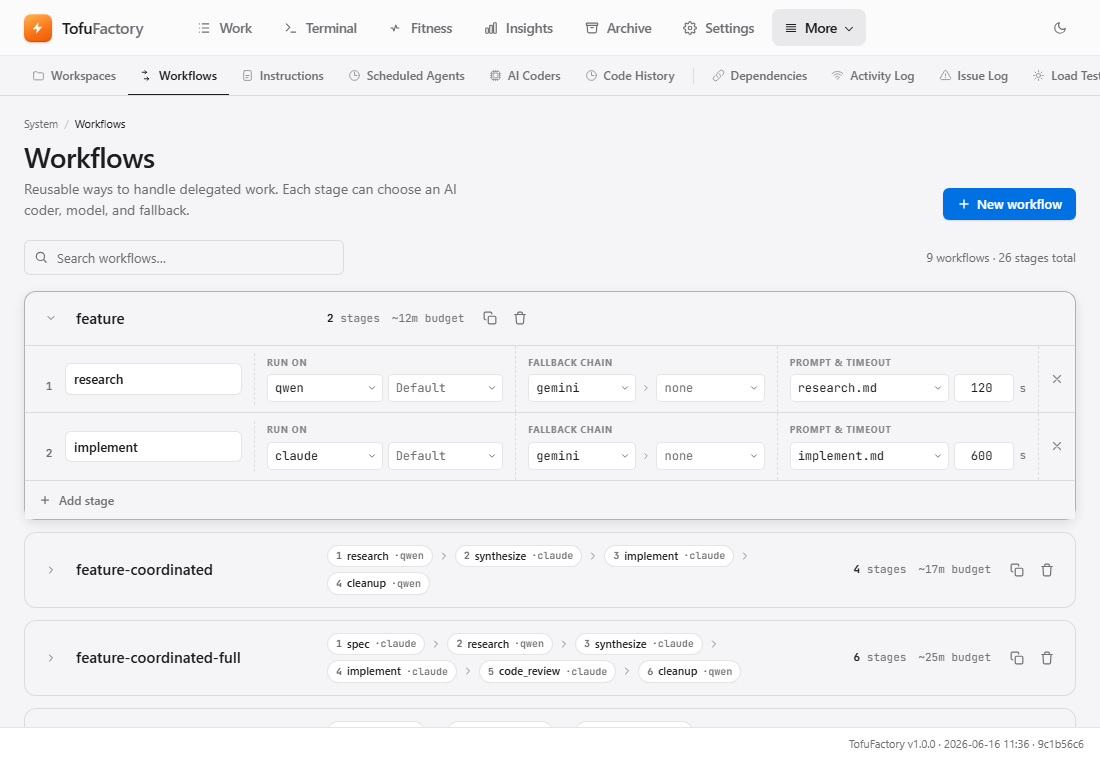
Go to the Pipelines screen. Your saved pipelines are listed on the left, and the builder canvas is on the right.
- Click New Pipeline and give it a clear name —
feature-with-tests-and-docs, say. - Pick the project it runs on by default.
- Click Add Step for each piece of work. Each step is one AI job.
- Drag the grab handle (
⠿) on a step to move it up or down — that's the order they'll run in. - Click Save.
Tune each step
A step doesn't have to use your default settings — you can shape each one for the job it does:
| Setting | What it's for |
|---|---|
| Title | A short label so you can tell steps apart — "Run linter", "Generate tests". |
| Prompt template | Start the step from one of your saved prompts (see page 12). |
| AI / model | Use a fast, cheap AI for a "format the code" step and a stronger one for "implement the feature". |
| Safety check | Whether this step builds and tests the project before merging. On by default; leave it on unless you have a reason not to. |

How the steps connect
By default each step waits for the one before it. Step 2 doesn't start until step 1 has passed its check and merged — so a later step always builds on finished, working code, never a half-done change.
Click the Dependencies tab to see the whole chain at a glance, colored by state:
| Color | Means |
|---|---|
| Green | Finished and merged |
| Blue | Running now |
| Gray | Waiting for the step before it |
| Red | Failed its check or was blocked — everything after it stops and waits |
Live step-by-step progress appears inside a running job, not on a standalone screen — open a task that's running a pipeline to watch one step work while the next waits.
Pass information between steps
You can leave blanks in a step's prompt — write them in curly braces, like
{feature_name} — and fill them in when the pipeline runs.
- You're asked up front. When you start the pipeline, it asks you for a value for each blank.
- Steps hand off automatically. Use a built-in blank like
{last_changed_files}and a later step is told what an earlier step changed — so "now write tests for it" knows what "it" is. - You can still change course. Edit a value in the running task's Status panel before a step begins, the same way you'd steer any job (page 5).
You should now see
- A pipeline you built and reordered on the canvas.
- Steps with their own prompts, AIs, and check settings.
- The Dependencies tab showing which step is waiting on which.
- Blanks filling in from one step to the next as the pipeline runs.
If something's not right
| Problem | What to do |
|---|---|
| I edited a pipeline but a running one didn't change | Edits apply to the next run; a run already going keeps the steps it started with. |
| A step never starts | The step before it failed or is still running — check the earlier step and the dependencies view. |
| The dependencies view is empty | Nothing depends on anything else yet — a single job has no connections to show. |
| A step is stuck on Blocked | The step before it failed its safety check. Fix that step's problem, or approve it by hand, and the pipeline picks back up. |
Next
→ 9 · The live terminal — talk to an AI directly when you want a hands-on session.