2 · Set up your AI workers
What you'll do
Tell TofuFactory which AI assistants it's allowed to use, pick the model each one runs, and decide which kind of work each one handles — all from the Settings screen.
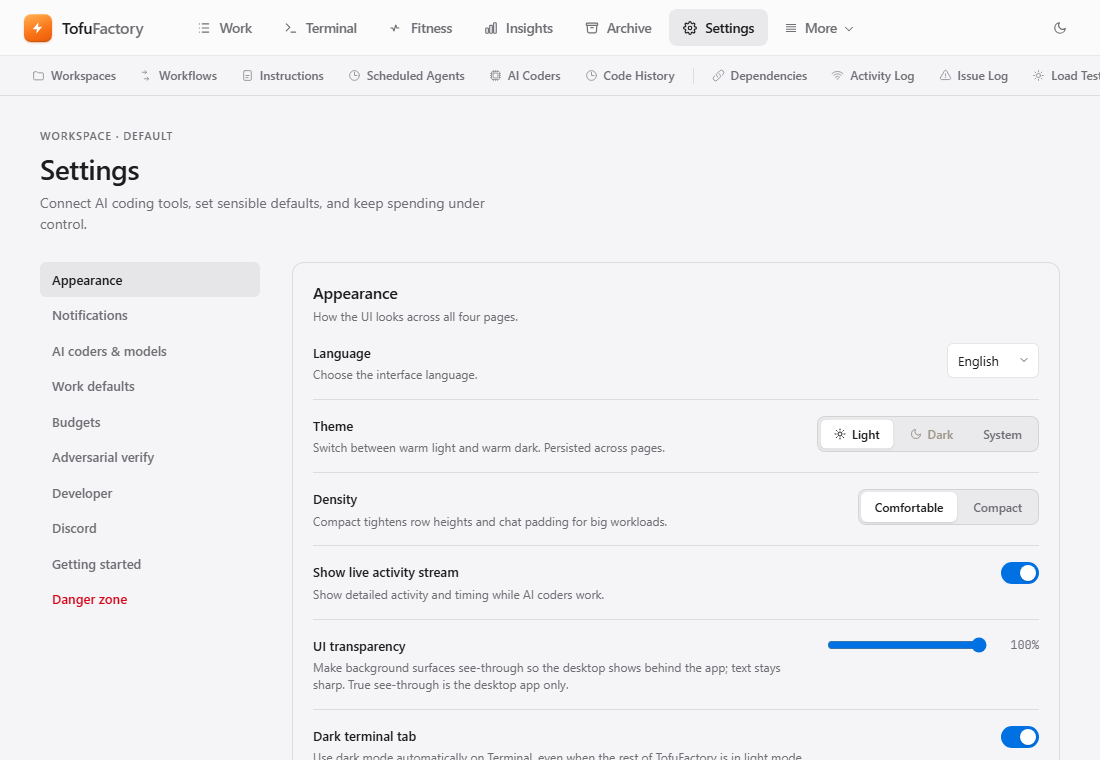
Open Settings
Go to Settings from the app's menu/navigation. This is where everything about your setup lives — workers, spending, alerts, language.
Turn on your AI assistants
TofuFactory can drive a few different AI coding assistants (such as Claude and Qwen). On the Settings screen it shows which ones are ready to use.
- If an assistant is ready, you'll see it listed as available.
- If one is not installed, there's an Install button next to it — click it and TofuFactory sets it up for you. You don't need a terminal.
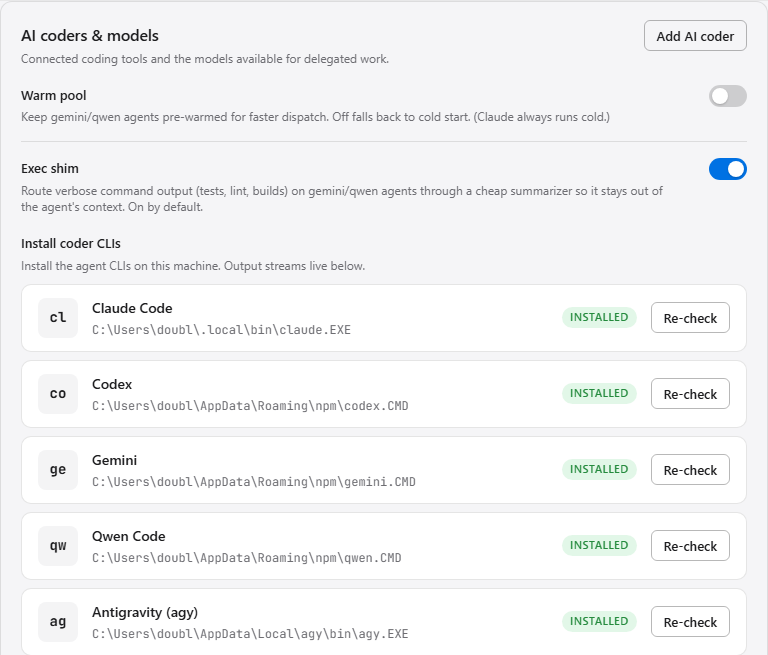
You don't need all of them. One is enough to start. More just gives the factory options.
Pick a model for each
Each assistant offers its own list of models — think of a model as the "engine," where bigger ones are smarter but cost more. Pick one from each assistant's dropdown. If one assistant has no model choice, that's normal — it simply doesn't offer one.
Rule of thumb: a stronger model for hard, thinking-heavy work; a cheaper, faster one for routine jobs. You can change this anytime.
Decide who does what: Role Mapping
TofuFactory organizes its work into four specialized roles. Instead of choosing an AI assistant every time you create a job, you map each role to one of your enabled assistants:
| Role | Kind of work | Recommended setup |
|---|---|---|
| Utility | Everyday, routine tasks (boilerplates, docstrings, formatting, cleanups, running tests) | A fast, cheap assistant (e.g. Qwen or Claude Haiku) |
| Planning | Strategic research, architecture, multi-file design steps, and spec generation | A high-reasoning assistant (e.g. Claude Opus) |
| Chat | Interactive steering messages, back-and-forth guidance, and Discord bot responses | A conversational, low-latency assistant (e.g. Claude Sonnet) |
| Incident | Diagnostics and repair tasks spawned during production fire drills (P0 issues) | Your absolute smartest model available to handle complex emergencies |
Point each role to one of your available assistants in the dropdowns. If you only have one assistant ready, point all four roles to it. The factory will still function perfectly, it just won't specialize.
Advanced worker settings
For deeper control, scroll down to the Advanced Worker Configurations section on the Settings page.
1 · Priority Order
The Priority Order list tells the factory which agent to use as a fallback if your primary assigned assistant hits a rate limit or goes offline. - Drag and drop the assistants in the list to rearrange them. - The assistant at the top has highest priority. If it's busy or rate-limited, TofuFactory automatically steps down to the next one on the list, preventing your queues from blocking.
2 · Custom paths & binary overrides
If you installed an assistant CLI manually in a custom location, or want to use a specific version (e.g. a pre-release or local testing build), you can tell TofuFactory exactly where to find it:
1. Locate the assistant CLI under the Binary Paths sub-section.
2. Toggle Custom Path and paste the absolute path to your CLI executable (for example, C:\tools\bin\claude.exe or /usr/local/bin/qwen).
3. Click Verify Path. The status will turn green if the app successfully communicates with the executable.
Power user: everything above is also saved to a plain text file —
config/agent_preferences.tomlin your workspace (or under your customTOFU_DATA_DIR). You never need to touch it; the Settings screen is the normal way. But if you want to copy your setup between machines or edit it offline, that file holds the roles, priority order, and binary paths, and the app re-reads it the next time a job starts.
You should now see
- At least one AI assistant marked as ready to use.
- A model chosen for each one you turned on.
- The four roles each pointing at an assistant.
If something's not right
| Problem | What to do |
|---|---|
| An assistant I installed still shows as not ready | Reopen Settings to refresh, or restart the app. |
| No models to pick for one assistant | Normal for some — they don't offer a model choice. |
| Install button didn't work | Try again; if it keeps failing, that assistant may need a separate sign-in or account the app can't set up for you. |
| Custom binary path is rejected | Ensure you specified the full path including the executable file name (not just its folder) and that the app has permissions to execute it. |
Next
→ 3 · Set a spending limit — put a cap on what the work can cost before you let it loose.