3 · Set a spending limit
What you'll do
Put a ceiling on what TofuFactory can spend, so an AI that gets stuck in a loop can't quietly run up a bill. This takes two minutes and is the most important two minutes in this guide.
Why this matters
The AI assistants charge for what they do. Most jobs cost a little. But an AI that goes in circles can spend a lot, fast — and it does it while you're not looking. The limits below are the brake.
Open the budget settings
Go to Settings → Budget.
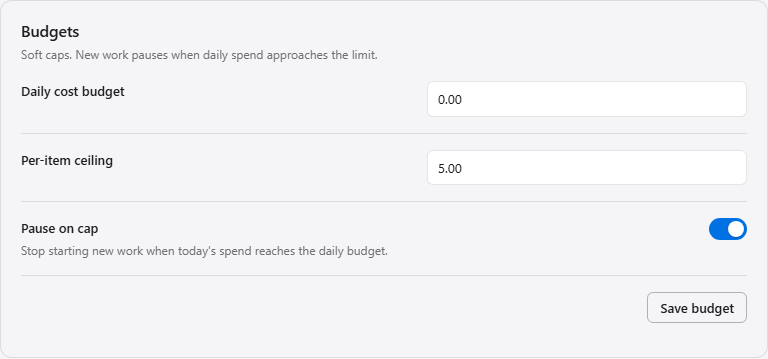
Set the three controls
| Setting | What it does | A good starting value |
|---|---|---|
| Daily budget | The most TofuFactory can spend in a day, across everything | An amount you'd be annoyed but not hurt to spend |
| Per-task limit | The most any single job can spend before it's cut off | A few times what a normal job costs |
| Pause when the cap is reached | When the daily limit is near, stop starting new work instead of just warning you | Turn this on |
Turn on "pause when the cap is reached." Without it, the limit is just a warning and work keeps going. With it on, the factory stops at the line and waits for you. This is the difference between "I overspent a little" and "I overspent until I noticed."
You should now see
- A daily budget and a per-task limit, both set.
- The "pause when the cap is reached" switch turned on.
Later, the dashboard shows your spending climbing toward the limit, so it never catches you by surprise.
If something's not right
| Problem | What to do |
|---|---|
| Spending went over the daily budget | The "pause" switch was probably off — turn it on. Also set a per-task limit, since one runaway job can overspend on its own. |
| Everything stopped on its own | You hit the daily cap with "pause" on — that's it working. Raise the budget, or let it resume (see page 17). |
| A finished job shows $0 | Some assistants report cost late or not at all. The total still reflects what they reported. |
Next
→ 4 · Your first task — now that there's a safety net, hand the AI a real job.