6 · Stay in control without watching
What you'll do
Use the dashboard to see the whole picture at a glance, and set up alerts so TofuFactory taps you on the shoulder when something needs you — instead of you watching it all day.
The dashboard
Go to the Dashboard. It's the at-a-glance board: what's running now, what finished recently, how much you've spent today, and whether anything looks wrong.
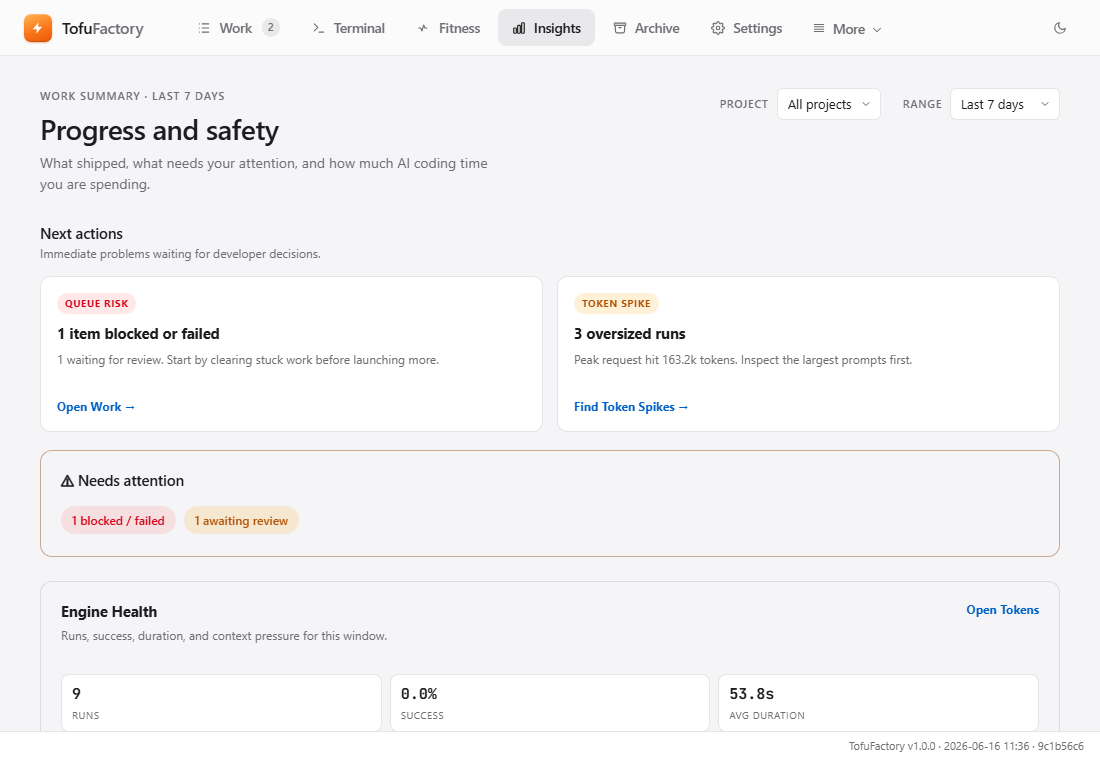
If something on the dashboard is red, that's your cue to click in and look. If it's calm, the factory is fine and you can leave it alone.
There are a couple of deeper views too. An activity / observatory screen shows the AIs working in real time (handy when a job feels stuck — it tells you whether an AI is actually on it). A history / timeline screen lets you scroll back through everything that happened. You don't need these day to day, but they're there when you want detail.
Set up alerts
So you can walk away, tell TofuFactory how to reach you. Go to Settings → Notifications.
You have two ways to be alerted:
| Alert type | Best when |
|---|---|
| Pop-up notifications | You're at the computer — get a desktop pop-up when something changes |
| Discord | You're away — get a message in Discord you can read from your phone |
Pop-up notifications
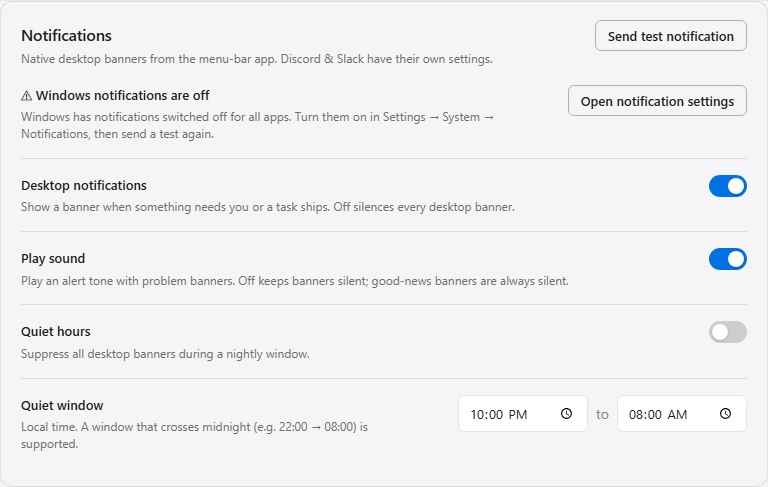
- Turn on notifications in Settings.
- Use the test button to send yourself one right now.
- If nothing appears, your computer hasn't given the app permission yet — the settings screen has a button to open your system's notification settings so you can allow it.
Discord
- In Discord, create a webhook for the channel you want messages in (Discord's own settings do this).
- Paste it into Settings → Notifications → Discord and save.
- Send the test to confirm a message lands in the channel.
What you'll be told about
Alerts cover the moments that actually need you — a job finished, a job got stuck, or work was paused. You won't be spammed about every little step; that's what the dashboard and history are for.
The morning briefing
TofuFactory can also give you a morning summary of what finished and what's waiting — so you can set jobs running in the evening and read the recap with your coffee, instead of scrolling through everything.
You should now see
- The dashboard as your one "is everything OK" screen.
- A test alert that actually reached you on at least one channel.
- A way to leave the factory running and trust it to call you.
If something's not right
| Problem | What to do |
|---|---|
| The pop-up test did nothing | Your computer is blocking it — use the "open system settings" button and allow the app. |
| The Discord test failed | Double-check the webhook; a wrong or removed one silently drops messages. |
| Too many alerts | Narrow which events you've turned on in Settings. |
Next
→ 7 · Save time with templates & GitHub — stop retyping the jobs you do often.